Turn ticket chaos into calm choices.
Group your ticket types into clear categories, so buyers see the shape of your event and find their ticket fast.
Sign upIncluded on Pro and Amplify.
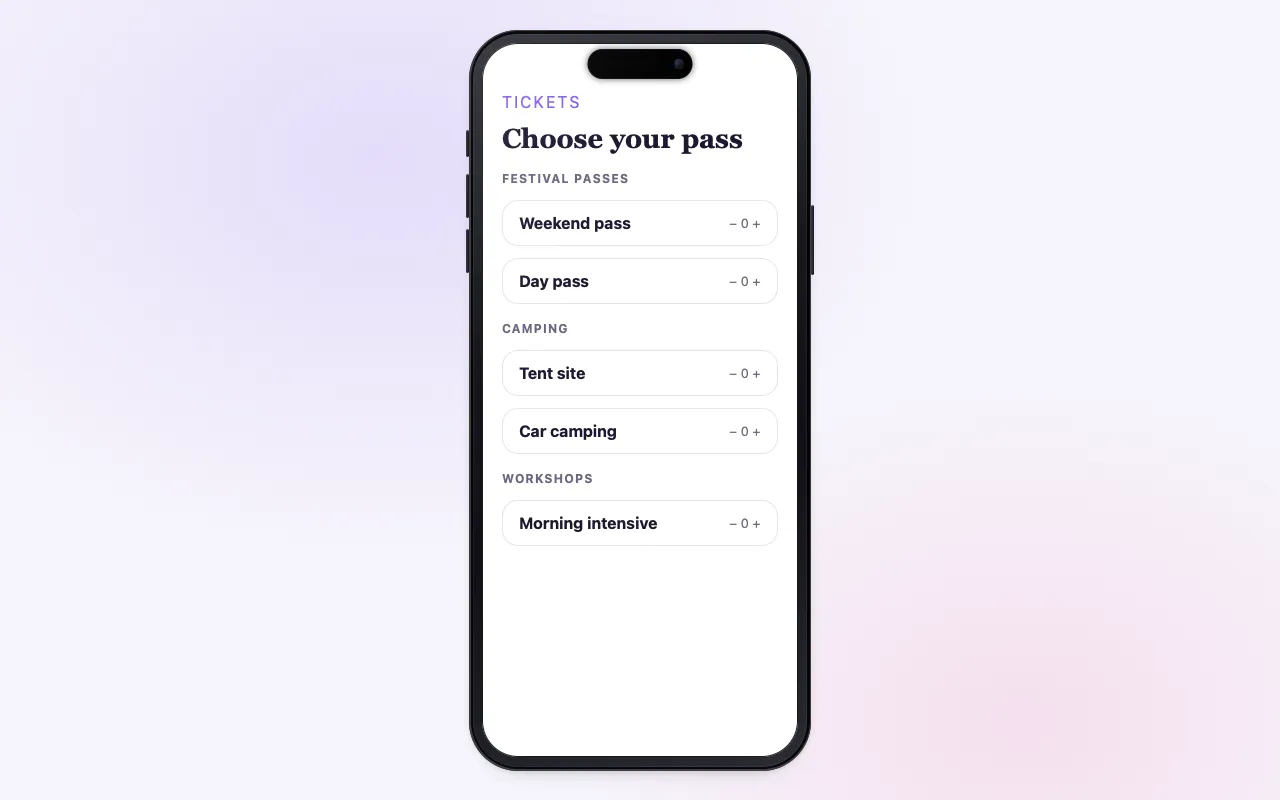
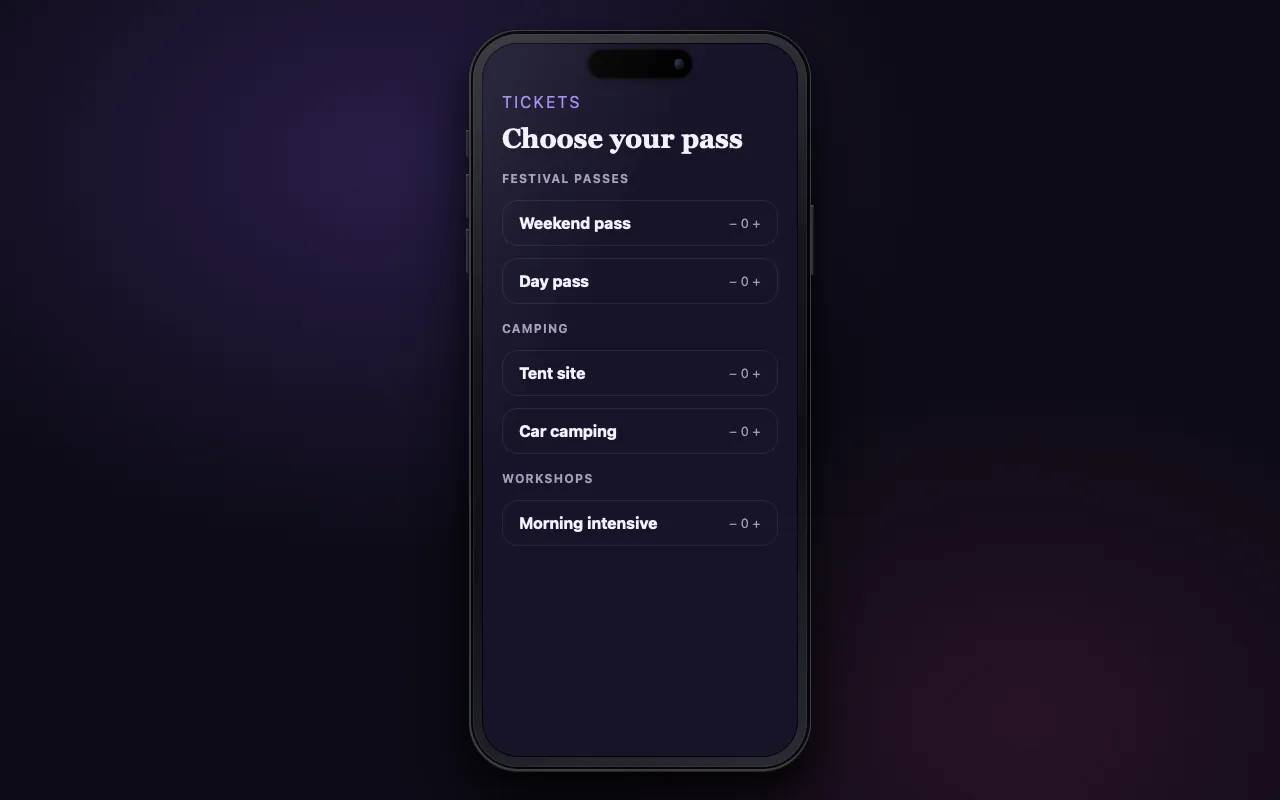
Turn ticket chaos into calm choices.
Group your ticket types into clear categories, so buyers see the shape of your event and find their ticket fast.
Sign upIncluded on Pro and Amplify.
Less decision fatigue
Clear groups
Expandable sections with your own names, shown when there is more than one category.
Your order
Arrange categories and the tickets within them so the right ones come first.
Off until you want it
Existing events are unchanged until you switch categories on.
How it works
Turn it on
In your event’s settings.
Create categories
Name them the way your attendees think.
Sort your tickets
Drag each ticket type into its category.
Loved by artists and organizers
“For nearly two decades, Akal (owner of BrightStar) has been lending his skills and talents in support of the Bhakti movement. His platform uniquely serves our movement with authenticity and heart. The technology also rocks!”

Jai UttalGrammy Nominee (Client Since 2014)
“Not only does BrightStar offer a powerful software platform that has worked very well for my events, but their client support is the best. Their communication is personal, heart-centered, and always thoughtful.”

Peter KaterTwo-Time Grammy Winner (Client Since 2014)
“We've been so happy with the outstanding customer service that we've received while working with BrightStar, and feel great about supporting a company that is authentically committed to the ideals of higher consciousness.”

Eric ForbisFounder, BuddhaFest (Client Since 2012)
Questions organizers ask
What happens to tickets not in a category?
They still show on your page, below the organized sections. Nothing is hidden.
Can I reorder tickets?
Yes, both between and within categories.
Which plans include it?
Ticket Categories is on Pro and Amplify.
Questions organizers ask
What happens to tickets not in a category?
They still show on your page, below the organized sections. Nothing is hidden.
Can I reorder tickets?
Yes, both between and within categories.
Which plans include it?
Ticket Categories is on Pro and Amplify.
Read more
When a list of tickets becomes a wall
A simple event has two or three ticket types and needs no organizing. A festival is another matter: weekend passes, day tickets, camping, parking, children’s tickets, workshops with limited places, a volunteer contribution. Shown as one long list, fifteen ticket types make a buyer scroll, compare and doubt. Ticket categories group them under headings, so the buyer first chooses the kind of thing they want and only then the exact ticket.
How buyers see it
On your event page, each category is a section with your heading. Buyers open the section they are interested in and see only those ticket types. The grouping is shown when there is more than one category; with a single category, the page stays as simple as before. Nothing about checkout changes. The buyer still adds tickets to one order and pays once.
Naming categories
The headings are yours. Use the words your guests use: “Festival passes”, “Single days”, “Camping and parking”, “Workshops”. For a retreat: “Program”, “Rooms”, “Extras”. For a training: “Full training”, “Modules”. Clear names do more for a buyer than any description beneath them.
Putting them in order
You decide the order of the categories and of the ticket types inside each. Lead with what most people buy. A festival will usually put the full pass first and the add-ons last. Ordering is a quiet way to guide people toward the ticket that suits most of them.
Tickets without a category
A ticket type you have not assigned to a category is not hidden. It stays on the page, below the organized sections. So you can introduce categories gradually, or leave a single special ticket outside them, without anything disappearing from sale.
Off until you switch it on
Categories are a setting on each event. Existing events are unchanged until you turn the setting on, and an event with only a few ticket types never needs it. Switching it off again returns the page to one list, with every ticket type still on sale.
Works with the rest of your ticket setup
Each ticket type keeps its own name, price, quantity and description. A ticket type can have its own sale dates, so an early price opens and closes by itself; outside its window, checkout will not sell it. You can set the fewest and the most of a type that one buyer may take in a single order. And you can pause a ticket type, taking it off the page without deleting it or its sales. Categories simply arrange these types; they do not change how any of them sells.
Good patterns for large gatherings
Keep the number of categories small: three to five is usually right. Put each ticket type in exactly one. If two ticket types differ only by date, say the date in the name. If a workshop has limited places, give it its own quantity and let it sell out by itself, while the pass stays on sale.
For your team
A clear structure helps you as much as your buyers. Sales by Ticket Type reports each type separately, so you can see how passes, camping and workshops are selling. Your guest list shows each ticket with its type, so your team knows whether the person in front of them holds a weekend pass or a Saturday ticket.
Where it is included
Ticket categories are part of Pro and Amplify. Organizers with a simple event on Free can still offer several ticket types; categories are for the gatherings whose ticket list has grown beyond what a single list can carry.
An example for a festival
Take a three-day festival. Under “Festival passes” sit the full weekend pass and a youth pass. Under “Single days” sit Friday, Saturday and Sunday. Under “Camping and parking” sit a tent pitch, a camper van place and a car park ticket. Under “Workshops” sit four limited sessions. Fourteen ticket types, but a buyer sees four headings, opens the one they came for, and is done in a minute. On a phone, where most tickets are bought, the difference is even greater.
An example for a retreat
A retreat usually has fewer types but more kinds. “Program” holds the full retreat and a weekend-only option. “Extras” holds the airport shuttle and a private session with the teacher. Rooms are chosen in their own step. Categories keep the first decision, whether to come for the whole week, apart from the smaller ones that follow.
Describing each ticket type
Inside a category, the short description of each ticket type does the selling. Say what is included and what is not: which days, which meals, whether camping is part of the pass. A buyer who has to email you to find out will often not email at all. Good descriptions also reduce questions at the door, where a misunderstanding costs the most time.
Changing your structure later
You can rename a category, move a ticket type from one to another or change the order while tickets are on sale. Orders already placed are not affected, since a category is a way of presenting ticket types, not a property of the ticket that was bought.
Smart Pricing
Get a suggested price for every ticket type, based on similar events near you, and decide for yourself.
See the feature →Coupon Codes
Codes that open and close on your event's own clock, cover only the tickets you choose, and show you what each one sold.
See the feature →Assigned Seating
Buyers pick their exact seat from a clear, live map, and the seat is theirs the moment they pay.
See the feature →Embed Widget
Paste one snippet on your site and buyers choose tickets and pay right there, without being sent away.
See the feature →Waitlist
Your event page captures interest at every stage, from before tickets open to after it sells out, and follows up for you.
See the feature →Custom Questions
Add your own questions to checkout and every answer arrives tied to the right attendee, ready to export.
See the feature →See allThere is more to see.