Every attendee arrives informed and ready.
Confirmations go out the moment someone buys, and timed reminders keep your event in mind until the day.
Sign upIncluded on Pro and Amplify.
Every attendee arrives informed and ready.
Confirmations go out the moment someone buys, and timed reminders keep your event in mind until the day.
Sign upIncluded on Pro and Amplify.
Fewer no-shows, warmer arrivals
Instant confirmation
Order details and QR codes in the buyer’s inbox the moment they purchase.
Timed reminders
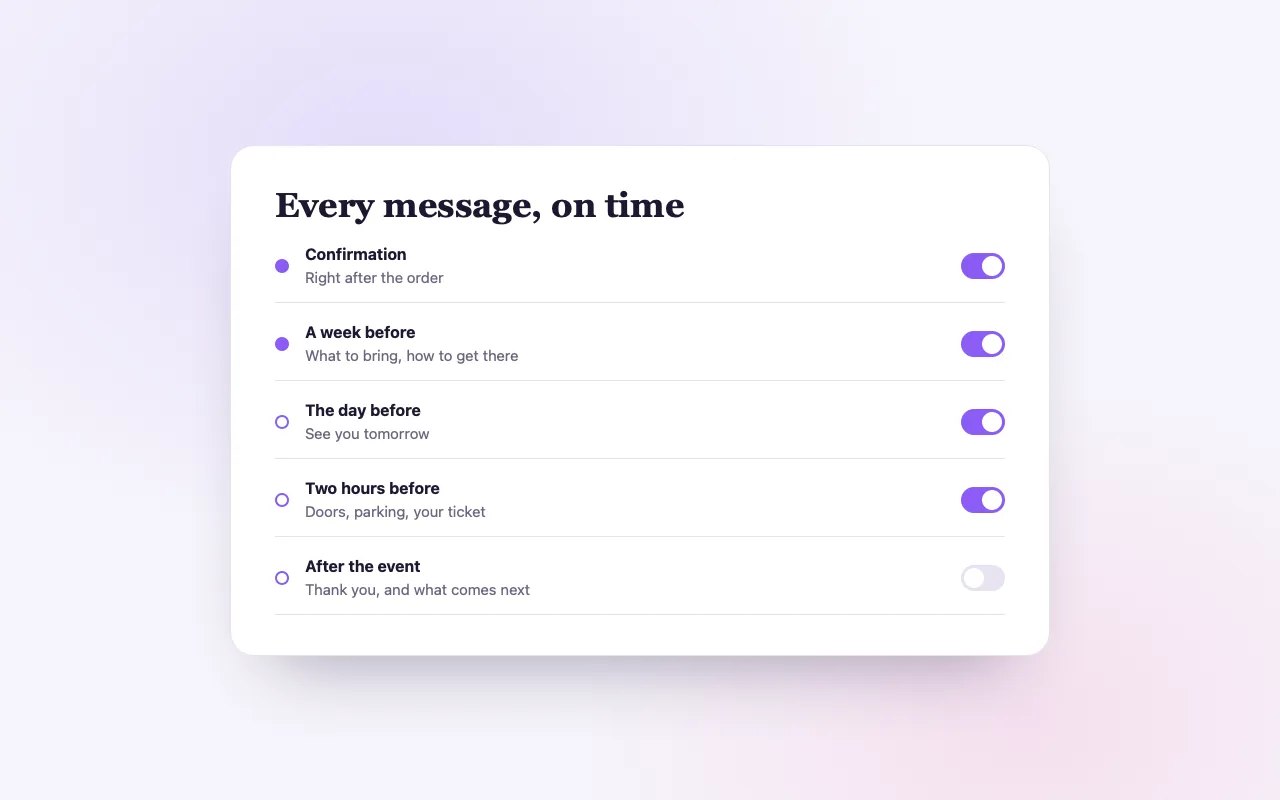
A week, a day and two hours before the start, in the event’s own time zone, each sent once.
Everything they need
Tickets, directions, add to calendar and a way to message you, plus your own note for each stage.
How it works
They buy
The confirmation arrives at once, with their tickets.
Reminders follow
Each stage goes out on schedule to everyone holding an active ticket.
They arrive prepared
QR code ready, route planned, nothing missed.
Loved by artists and organizers
“Not only does BrightStar offer a powerful software platform that has worked very well for my events, but their client support is the best. Their communication is personal, heart-centered, and always thoughtful.”

Peter KaterTwo-Time Grammy Winner (Client Since 2014)
“We've been so happy with the outstanding customer service that we've received while working with BrightStar, and feel great about supporting a company that is authentically committed to the ideals of higher consciousness.”

Eric ForbisFounder, BuddhaFest (Client Since 2012)
“For nearly two decades, Akal (owner of BrightStar) has been lending his skills and talents in support of the Bhakti movement. His platform uniquely serves our movement with authenticity and heart. The technology also rocks!”

Jai UttalGrammy Nominee (Client Since 2014)
Questions organizers ask
Do I need to set up the sequence?
No writing needed. Switch reminders on for your event; you can add your own message to any stage or turn a stage off.
Who receives the reminders?
Only people holding an active ticket, never someone who started checkout and did not pay.
What do the reminders include?
The event’s date and time in its time zone, the venue with directions, the tickets with QR codes, and a link to manage or message.
Which plans include it?
Confirmation emails come with every plan. The full reminder sequence is on Pro and Amplify.
Read more
Two kinds of email, both sent for you
There are two emails every guest expects from an event, and both are easy to get wrong by hand. The first is the confirmation: proof that the booking worked, with the tickets attached. The second is the reminder: a timely note that the day is near, with everything needed to arrive. BrightStar sends both. The confirmation goes out the moment an order is paid or a free registration is completed. The reminders follow on a fixed schedule before the start. You do not build a sequence or connect an email tool; you decide which reminders to send and, if you like, what each should say.
The confirmation email
As soon as a booking completes, the buyer receives an email with the order details and a QR code for each ticket, which is what your door will scan. If the event has assigned seats, the seat is shown with the ticket. The same tickets are also in the buyer’s account under their tickets, so a deleted email is not a lost ticket. If a buyer cannot find the message, you can resend the confirmation from the order in your dashboard, and a ticket that has since been voided is left out of the resent email.
The three reminders
Reminders are sent at three moments: about a week before the start, about a day before, and about two hours before. Each is worked out in the event’s own time zone, so a class in Lisbon and a festival in California are each reminded at the right local hour. Every stage can be switched on or off by itself. Some organizers send all three; others prefer only the day-before note. The full three-stage sequence is part of Pro and Amplify.
Who receives them
Reminders go only to people who hold an active ticket, or a confirmed room where the event sells stays. A person who started a checkout and never paid is not reminded of an event they are not attending, and a ticket that was voided no longer brings a reminder. Each stage is sent once to each registrant, and the send is recorded, so nobody receives the same reminder twice.
What a reminder contains
A reminder is built to be the one email a guest needs on the day. It shows the date and time in the event’s time zone, the venue with a link for directions, and the tickets with their QR codes. For in-person events there is a printable ticket, and an Apple Wallet pass for those who use one. It has a link to add the event to a calendar, a link to manage the tickets, and a way to message you. A reminder never shows prices or payment details.
Your own message
For each stage you can write a short message of your own, which appears in that reminder: where to park, what to bring, when the doors open, what to expect in the first session. You can also add “good to know” notes that are shown with the practical details. If a guest replies to a reminder, the reply goes to you, not to a no-reply address. The address your organizer emails use is the one you set under Settings, Notifications, or your account email if you have not set one.
Recommendations inside the emails
Confirmation and reminder emails can also show a small set of other events: your own next dates or related events ranked by performer, category and place. With Pro and Amplify, turn automatic recommendations on or off in event settings. It means the email a guest already opens before coming to your event can also introduce the one after it.
What these emails are not
These are service emails about a booking, sent separately from any marketing email, and a guest can choose in their email preferences whether to keep receiving reminders. They are not a newsletter tool: to send a one-off note to everyone holding a ticket, use Message Attendees on the event, which is available on every plan. Where a buyer has opted in on their order page, a text reminder can go out beside the email, but a text never replaces the email and never delays it.
Writing a good reminder note
The most useful notes answer the questions guests would otherwise email you. For the week-before reminder: what to bring, what to wear, whether food is provided. For the day-before reminder: the address as a taxi driver would need it, where to park, when doors open and when the session begins. For the two-hour reminder: one line is enough, such as which entrance to use. Keep each note short. The ticket, the time and the directions are already in the email around it, so your words only need to add what only you know.
Online and multi-day gatherings
The same schedule serves events that are not a single evening in a hall. For an online event, the reminder is where a guest looks for how to join. For a retreat that sells rooms, a guest with a confirmed room is reminded as a ticket holder is. Reminders are timed from the start of the event, so a week-long gathering is announced once before it begins, not every morning.
Maestro
Maestro works in your dashboard: ask in your own words, check the change on one card, tap to apply.
See the feature →Message Center
One inbox on every plan. Automatic replies with Pro and Amplify.
See the feature →Ticket Scanner
One app for the door: download BrightStar Organizer, sign in with your team login, pick the event and scan.
See the feature →Team access
Invite the people who run your events with you, give each one a role, and keep money and buyer details to those who need them.
See the feature →AI FAQ Assistant
Your event page carries its own questions and answers, and an assistant on the page answers the rest from your event’s details.
See the feature →Analytics & Reporting
Sales, revenue and returning guests as they happen, with insights in plain words about what to do next.
See the feature →See allThere is more to see.