Know what you need before they arrive.
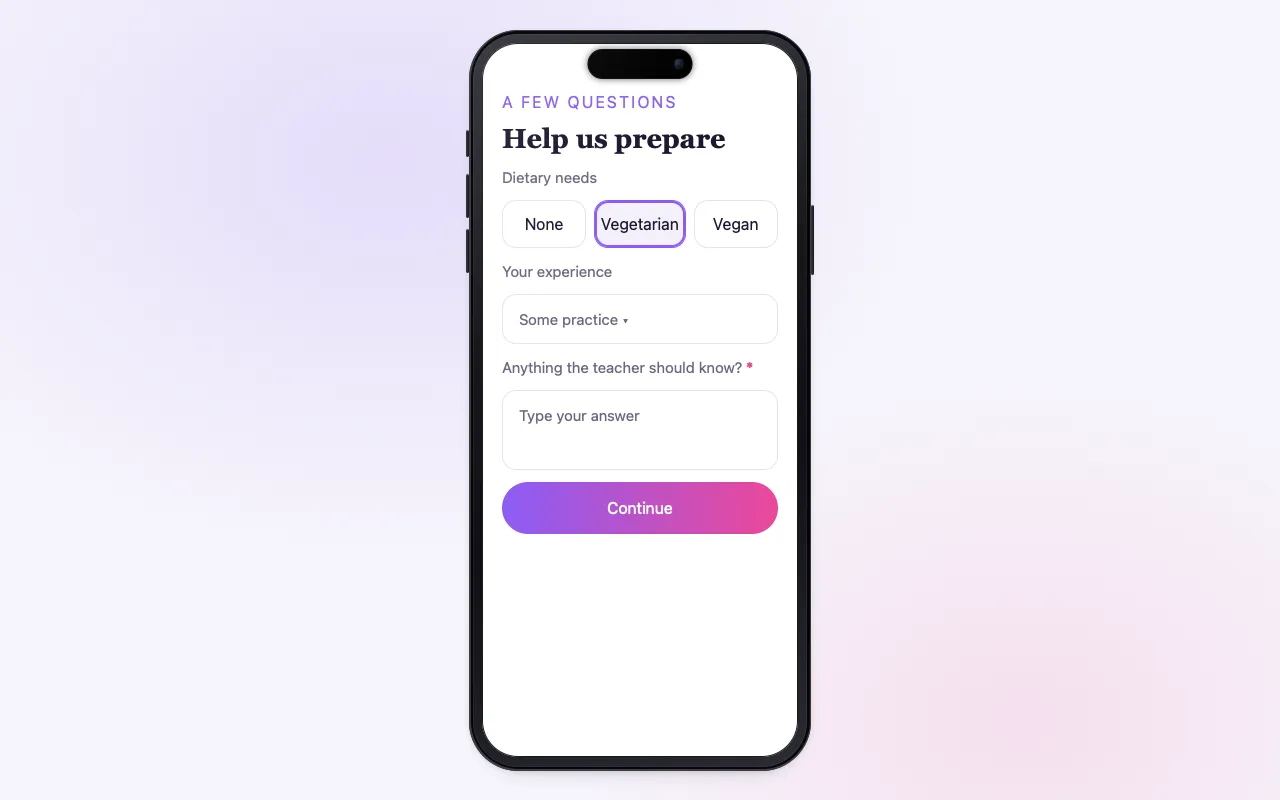
Add your own questions to checkout and every answer arrives tied to the right attendee, ready to export.
Sign upIncluded on Pro and Amplify.
Know what you need before they arrive.
Add your own questions to checkout and every answer arrives tied to the right attendee, ready to export.
Sign upIncluded on Pro and Amplify.
No more follow-up forms
Right in checkout
Questions sit in the purchase flow, so there is no separate survey to chase.
The types you need
Short text, long text, dropdown and checkbox, plus a waiver agreement; each required or optional.
Ready for your team
Answers appear on each attendee and in the attendee list export, one column per question.
How it works
Add your questions
Pick a type and write the question in the event’s tools.
Set the rules
Mark each one required or optional and add dropdown options.
Collect and export
Answers flow in with each purchase; download them with your list.
Loved by artists and organizers
“For nearly two decades, Akal (owner of BrightStar) has been lending his skills and talents in support of the Bhakti movement. His platform uniquely serves our movement with authenticity and heart. The technology also rocks!”

Jai UttalGrammy Nominee (Client Since 2014)
“Not only does BrightStar offer a powerful software platform that has worked very well for my events, but their client support is the best. Their communication is personal, heart-centered, and always thoughtful.”

Peter KaterTwo-Time Grammy Winner (Client Since 2014)
“We've been so happy with the outstanding customer service that we've received while working with BrightStar, and feel great about supporting a company that is authentically committed to the ideals of higher consciousness.”

Eric ForbisFounder, BuddhaFest (Client Since 2012)
Questions organizers ask
What types of questions can I add?
Short text, long text, dropdown with your options, checkbox, and a waiver or agreement with its full text.
Can I make questions required?
Yes. Required questions must be answered before checkout completes. Keep them few so checkout stays quick.
How do I export the answers?
They are in your attendee list export, each question as its own column.
Which plans include custom questions?
Custom questions are on Pro and Amplify.
Read more
The questions every organizer ends up asking
Almost every gathering needs to know something about the people coming. A retreat kitchen needs dietary needs. A teacher training wants to know experience. A festival needs an emergency contact, a shirt size, or which workshop someone hopes to join. The usual answer is a second form sent after the booking, which half the guests never open. Custom questions put those questions inside checkout, so the answer arrives with the booking and is already attached to the right person.
Five kinds of question
You can add a short answer for a name or a phone number, a long answer for something that needs a sentence or two, a dropdown with the choices you list, a checkbox for a simple yes, and an agreement, which shows a text in full and asks the buyer to accept it. Each question has a title and can have a short description to explain why you are asking. You add them among the event’s tools or while creating the event.
Required or optional
Each question is either required or optional. A required question must be answered before checkout can finish; an optional one can be skipped. We suggest keeping required questions few. Every extra field is a moment in which a buyer can decide to come back later, and the questions that matter most are usually the ones about safety and food.
Address and phone number
Besides your own questions, you can ask for two standard details: a mailing address and a mobile number. Each can be left off, offered as optional, or made required. This is useful when you post materials before a training, or need a number for the day of the event.
Starters and your saved questions
You do not have to write everything from an empty page. Common questions can be added with one tap and then edited. Questions you have written can be saved and added to your next event, so the careful wording you settled on for one retreat is there for the next.
Where the answers appear
Answers are stored with each booking. In your dashboard, opening a guest shows what they answered. In the Attendee List report, each question is its own column, so the kitchen can filter for allergies and the door can see emergency contacts. The report downloads as a CSV file that opens in Excel, Numbers or Google Sheets, and it can be scheduled to arrive in your inbox, or a colleague’s, before the event.
Good practice
Ask only for what you will use, and say why. A line such as “so our cook can prepare for you” turns a form field into care. Avoid asking for sensitive information you do not need, and remember that what you collect is personal data you are responsible for. If the same question applies to all of your events, save it once and reuse it, so your lists stay comparable from one event to the next.
What custom questions do not do
Questions are answered once per order by the person booking. They do not branch, so a second question cannot appear only when a certain answer is given to the first. For a group booking, ask the buyer for the details of everyone in their party in a long answer, or collect them on arrival. Custom questions are part of Pro and Amplify.
Examples from real gatherings
A retreat might ask: any dietary needs or allergies; an emergency contact name and number; anything the facilitators should know about your health. A teacher training: how long you have practiced, and with whom. A festival: which workshops interest you most, and whether you are coming with children. A kirtan with floor seating: whether you need a chair. A race or a hike: your shirt size and your expected pace. Each of these is one question in checkout and one column in your list.
Dropdowns keep answers tidy
Where the possible answers are known, use a dropdown. “Vegetarian, vegan, gluten-free, no restrictions” gives your kitchen four clean groups, while a free-text field gives forty spellings of the same thing. Keep free text for what cannot be predicted, such as a health note. A checkbox works well for a simple confirmation, for example that the guest has read the arrival information.
Using the answers before the day
Answers are most useful a few days ahead. Schedule the Attendee List report to reach your cook, your registration lead or your co-teacher, so they see the current answers without logging in. On the day, the same list helps the door: a guest who noted a mobility need can be welcomed properly, and a missing emergency contact can be asked for on arrival.
Check the questions as a buyer would
Before you publish, open your event page and walk through checkout yourself. Read each question as a stranger would. Is it clear what kind of answer you want? Is anything asked twice? Would you be comfortable answering it on a phone, standing in a queue? Five minutes of testing usually removes one question and rewords another, and your guests feel the difference. For later events, add your saved questions from your library when you create the next one.
Ticket Categories
Group your ticket types into clear categories, so buyers see the shape of your event and find their ticket fast.
See the feature →Smart Pricing
Get a suggested price for every ticket type, based on similar events near you, and decide for yourself.
See the feature →Coupon Codes
Codes that open and close on your event's own clock, cover only the tickets you choose, and show you what each one sold.
See the feature →Assigned Seating
Buyers pick their exact seat from a clear, live map, and the seat is theirs the moment they pay.
See the feature →Embed Widget
Paste one snippet on your site and buyers choose tickets and pay right there, without being sent away.
See the feature →Waitlist
Your event page captures interest at every stage, from before tickets open to after it sells out, and follows up for you.
See the feature →See allThere is more to see.